
Apple Pay has finally arrived in Malaysia and it enables convenient contactless payment using your iPhone and Apple Watch. If you have a compatible Apple device and an Apple Pay supported payment card, here’s how you can get started with Apple Pay.
Apple Pay compatible devices
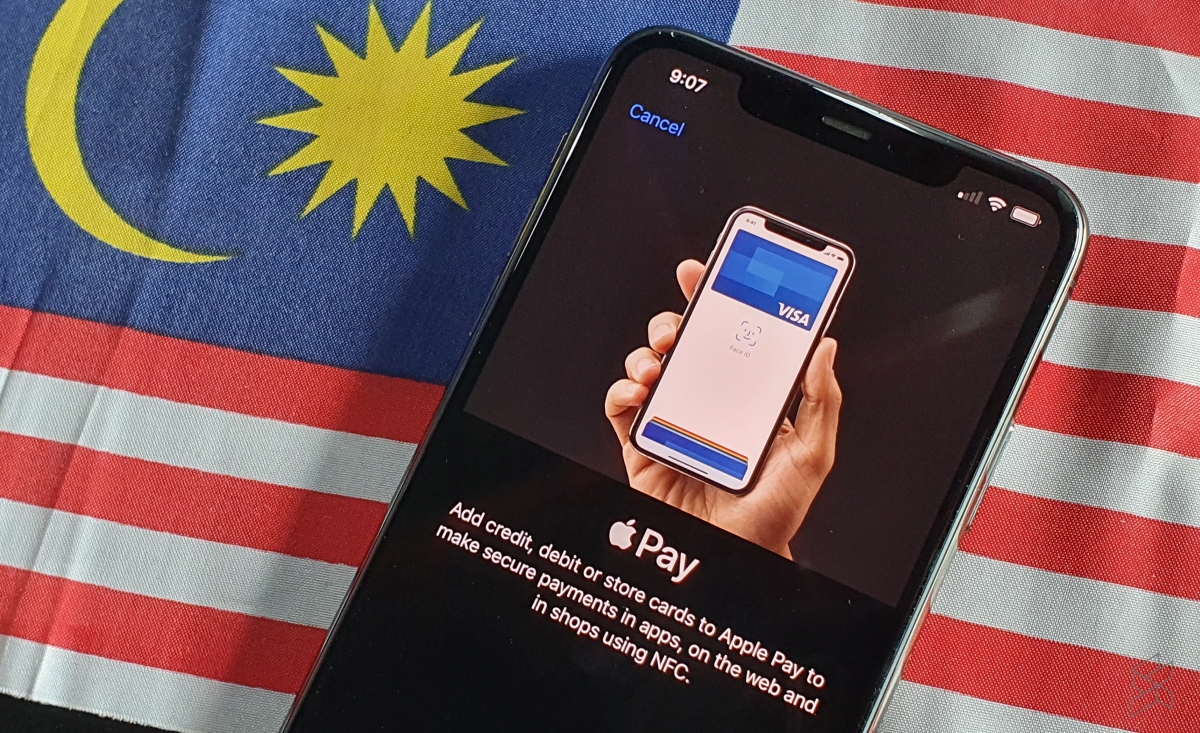
Apple Pay uses NFC (Near-field communication) technology and you’ll need an NFC-enabled device such as the iPhone 6 and above. If you’re planning to use your Apple Watch, Apple Pay is supported on Apple Watch Series 1 and above.
Supported payment cards for Apple Pay in Malaysia
At the time of writing, Apple Pay works with cards issued by AmBank and Maybank. On AmBank, it is compatible with their credit cards while Maybank’s credit, debit and even prepaid cards are supported.
How to add Malaysian cards to Apple Wallet?
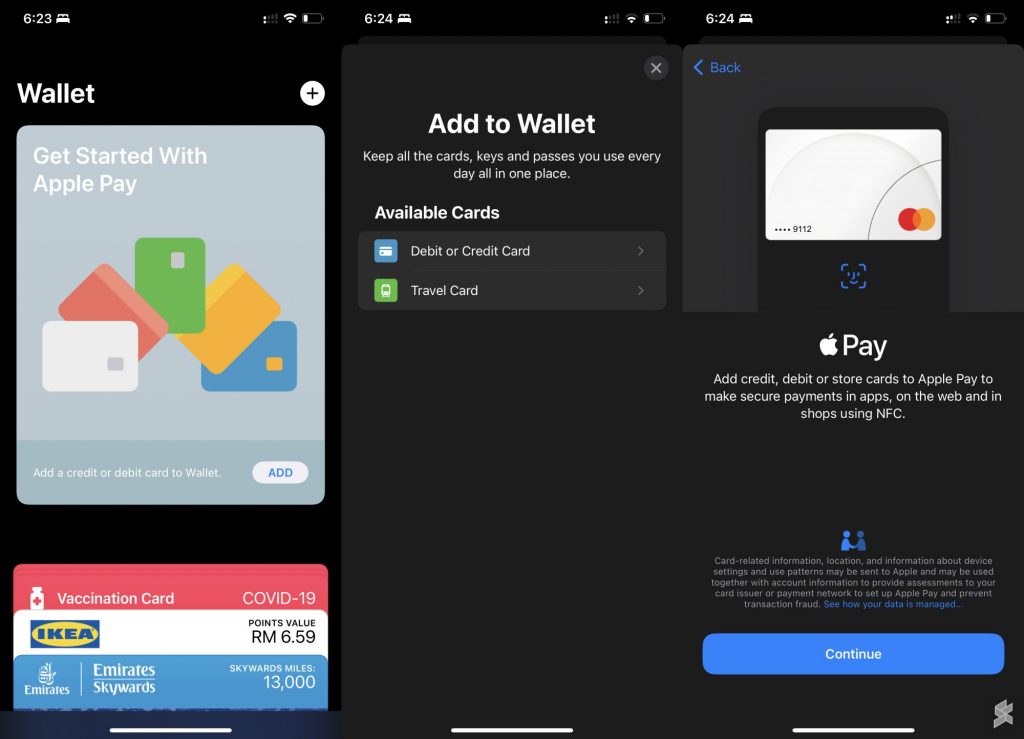
Before you can use Apple Pay, you’ll have to add your cards to Apple Wallet on your iPhone. Here are the steps to do so:
- Launch the Wallet app on your iPhone
- On the top right corner, tap on the + icon.
- Select “Debit or Credit Card”
- Tap continue
- Scan your card, or enter the card details manually
- Follow the instructions for verification with your bank. Typically it uses your bank’s OTP or phone call verification.
- Once verified, the card is added to your Apple Wallet.
How to add cards to Apple Wallet?
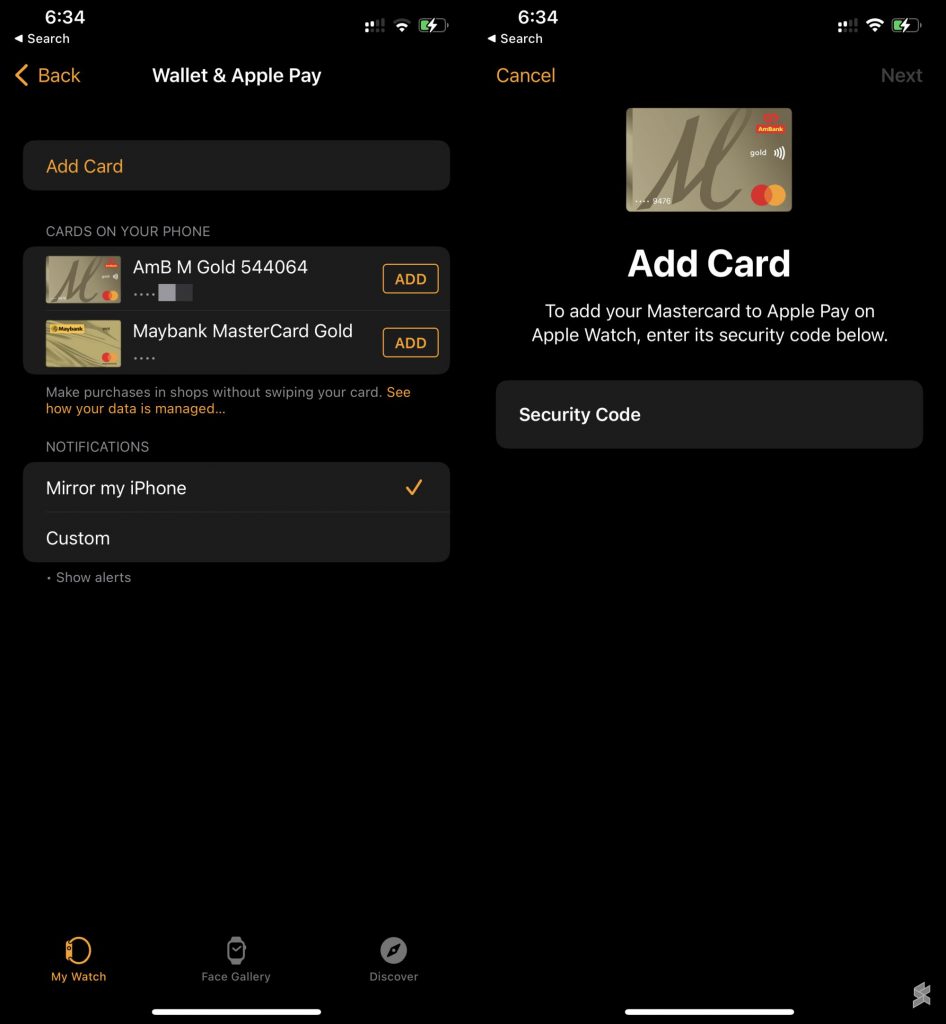
If you own an Apple Watch, you’ll have to add the cards manually and it requires another verification process. Here’s how to add your payment cards to Apple Watch:
- Launch the Watch app on your iPhone.
- Scroll down and tap on Wallet.
- You should see the list of cards that you’ve added to your iPhone, tap on ADD to add to your Apple Watch.
- You will be required to enter your card’s security code (CVV). Additional verification process may be required by your bank.
- Once completed, your payment card is now available on your Apple Watch.
How to pay using Apple Pay at the store?
Using Apple Pay for contactless transactions is just a double press away. Here’s how to use it:
iPhone with Face ID (iPhone X, XS, 11, 12, 13)
Double press the power button on the right
iPhone with Touch ID (iPhone 6, 7, 8, SE)
Double press the home button
Apple Watch
Double press the side button
Similar to Samsung Pay, Apple Pay works on any NFC-enabled payment terminals which currently accepts Visa PayWave or Mastercard PayPass payments. Your transactions are secured using Face ID or Touch ID. This means if your iPhone is lost or stolen, nobody can make payments except you.
On the Apple Watch, there are no further verification required as the Watch is already authenticated when you put it on. If the Apple Watch is taken off your wrist, it will lock itself automatically and disables Apple Pay. Each time you put on the Apple Watch, you’ll need to perform a one time authentication using your Face ID, Touch ID or passcode.
How’s your Apple Pay experience so far? Let us know in the comments below.
0 comments :
Post a Comment